A new Fluid Player website, and a Player Builder with every setting
Fluid Player has always been about one thing: a fast, free, open source HTML5 video player that you can make your own in minutes. Today the website that presents it gets a new look, and its most useful tool, the Player Builder, becomes a full studio where every option of the player is one click away.
A fresh new website
The first thing you will notice is the color. The homepage opens on a deep blue “liquid” background whose shapes drift, merge and split as you scroll, a nod to the player’s name. Next to it, a phone shows Fluid Player doing what it does best: a skippable pre-roll video ad, then the main video with an in-video banner a few seconds in. No screenshots, no mock-ups: it is the real player, running in your browser.
Under the hood, the site was rebuilt from scratch to be as light as the player it presents:
- Faster pages. The site is lighter, so every page loads quickly.
- A cleaner look. New typography, rounded cards, a frosted menu bar and a dark footer with every useful link in one place.
- A real blog. Articles now live in the Blog, with categories (Product news, Guides, Comparisons), a featured post and a reading time on every card. Old article links still work: they redirect to their new address.
The Player Builder, reimagined
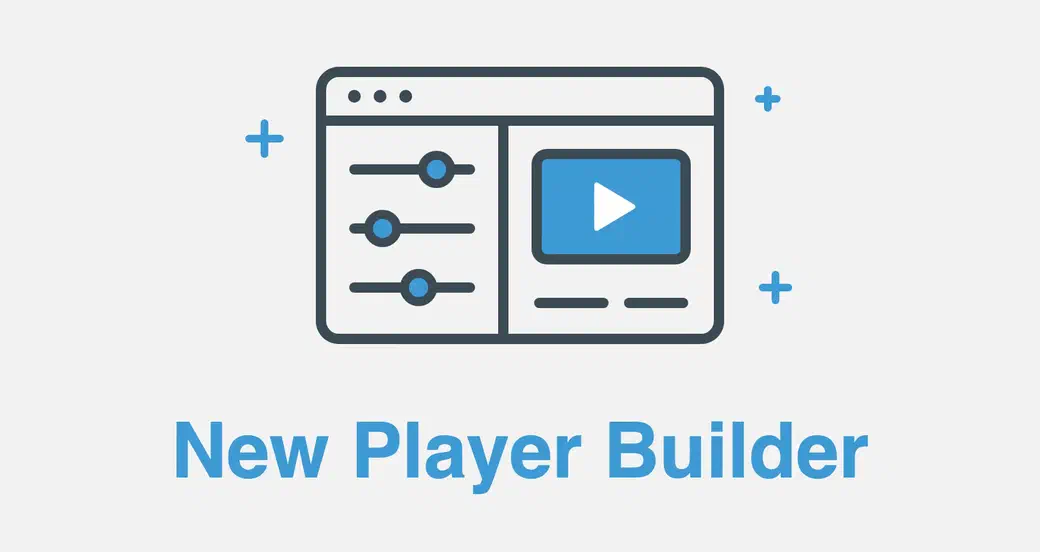
The previous Builder offered a dozen or so switches. The new one covers every option in the Fluid Player documentation: well over 100 settings, grouped in four tabs and in sections that fold open and closed so you only see what you need.
It works like a small studio. The settings sit on the left, a live player on the right. Every time you flip a switch, the player rebuilds itself with your choice so you see the result immediately. When you are happy, switch to Code, click Copy code and paste it into your page. The code only lists what you changed: options left at their Fluid Player default are not written, so your snippet stays short and readable. And if you get lost along the way, Reset Settings brings everything back to the start.
Here is a tour of what you can now set.
Controls: how the player behaves
- Your own video. The demo plays a scene from Spring by Blender Studio, but you can paste the address of your own video (an MP4 or WebM file, or an HLS or DASH stream) and try every setting on it.
- Playback. Autoplay, mute on load, loop, preload, the big play button and its play/pause animation.
- Control bar. Hide the controls after a few seconds (and choose the delay and fade), offer playback speeds of your choice, add skip ±10 second buttons, a download button and theater mode, with its own width, height, margin and alignment.
- Mini player. When a viewer scrolls past the video, it keeps playing in a small floating window. Choose the corner, the size on desktop and phones, and whether it opens by itself.
- Viewer features. Timeline thumbnails that preview the video as you hover the progress bar, subtitles (English and Spanish in the demo, on by default if you wish), a grid of suggested videos at the end, keyboard shortcuts, double-click for full screen and full screen in landscape on iPhone.
- Right-click menu. Add playback controls to it, or a link of your own, such as your website or your terms.
- Remember viewer choices. The player can remember each viewer’s volume, quality, speed and theater mode for their next visit.
Style: make it look like your site
- Primary color for the play button, progress bar and animations, plus rounded corners to match your cards and images.
- Control icons in several styles, or a template to drop in your own.
- A video title across the top of the player.
- A poster image, with how it fills the player. Try one from your computer: it stays in your browser and is never uploaded.
- Your logo in the corner of your choice, with its opacity, margin and an optional link. It can hide with the controls and show or stay away during ads.
- Interface text. Rename Play, Pause, Mute, Full screen, Subtitles and the other labels, for example to translate the player into your visitors’ language.
- On pause. Show your own HTML in the middle of the player when the video is paused, with its width and height.
Advertising: monetize every view
Fluid Player was built with publishers in mind, and the Advertising tab shows it. Turn on any ad type and the preview plays a demo ad straight away, so you can see exactly what your viewers will see:
- Pre-roll, mid-roll and post-roll video ads, each with its own VAST tag, and the time the mid-roll starts.
- On pause roll, shown when the viewer pauses the video.
- In-video banner, with when it appears, how long it stays and where it sits.
- Call-to-action text over the ad, in the position of your choice, or read straight from the VAST file.
- Ad labels. The text shown during ads, its position, the skip countdown and the skip button.
- Advanced options. Whether a click on the ad opens it, a play button after the ad, VPAID support, VAST timeout, maximum redirects and a fallback VAST tag when the first one returns nothing.
Developer: hooks, ready to fill in
Developers get their own tab. Pick what you need, and the Builder adds it to your code as empty functions ready to fill in:
- A callback when the player is ready.
- Listeners for play, pause, ended, playing, seeked, time updates, theater mode and mini player events.
- Ad callbacks to follow every step of an ad.
- The control methods (play, pause, skip to a time and more).
- Hooks for HLS.js and Dash.js, and for every request the player makes.
- A custom theater mode that uses your own page layout.
Try it now
The best way to discover the new Builder is to play with it. Head to the Player Builder, flip a few switches, paste your own video, and see your player take shape. When it looks right, copy the code and you are done.
To go further, the documentation (opens in a new tab) explains every option in detail. And as always, Fluid Player is free and open source: star it, report an issue or contribute on GitHub (opens in a new tab).