How to add a React video player with VAST ads
On this page 14 sections
Most React video player tutorials stop at “here is a component that plays a video”. If you want to monetize your videos, that’s only half the job: you also need video ads. In this guide we build a reusable React video component around Fluid Player, the free and open source HTML5 video player with VAST ads built in, then add pre-roll, mid-roll and post-roll ads, listen to player events, play HLS streams and type it all with TypeScript.
Every example was tested with Fluid Player 3.61, React 19 and Vite, with React’s StrictMode switched on.
This is the first guide in our integration guides series: step-by-step guides to adding Fluid Player to the frameworks and platforms you already use, each with tested code. Next up: Next.js.
What you need
- A React app (Vite, Create React App, or any other setup that bundles npm packages).
- Fluid Player from npm. It is free for any use, commercial sites included, under the MIT license.
- For ads: a VAST tag URL from your ad network or ad server. Fluid Player works with any VAST-compatible network.
Step 1: install Fluid Player
npm install fluid-playerThe npm package doesn’t add its styles by itself, so you import its CSS file once, in the component that uses the player (Step 2 does it). With Vite, use the plain path:
import 'fluid-player/src/css/fluidplayer.css';Older webpack setups may need a tilde when you import it from a CSS file instead: @import "~fluid-player/src/css/fluidplayer.css";.
Step 2: build a reusable React video player component
Here is the whole <FluidPlayer> component. Save it as FluidPlayer.jsx:
import { useEffect, useRef } from 'react';
import fluidPlayer from 'fluid-player';
import 'fluid-player/src/css/fluidplayer.css';

export default function FluidPlayer({ src, type = 'video/mp4', options, onReady }) {
  const containerRef = useRef(null);

  useEffect(() => {
    // 1. Create the <video> element here, not in JSX:
    //    Fluid Player removes it when the player is destroyed.
    const video = document.createElement('video');
    const source = document.createElement('source');
    source.src = src;
    source.type = type;
    video.appendChild(source);
    containerRef.current.appendChild(video);

    // 2. Start Fluid Player, filling the box below.
    const player = fluidPlayer(video, {
      ...options,
      layoutControls: { fillToContainer: true, ...options?.layoutControls },
    });
    onReady?.(player);

    // 3. Clean up when the component unmounts or the video changes.
    return () => player.destroy();
  }, [src, type, options, onReady]);

  return <div ref={containerRef} style={{ width: '100%', aspectRatio: '16 / 9' }} />;
}
And use it like any other component:
import FluidPlayer from './FluidPlayer';

export default function App() {
  return <FluidPlayer src="/videos/my-video.mp4" />;
}
The player fills the width of its parent and keeps a 16:9 shape. Change aspectRatio if your videos have another format.
Why the <video> element is created in the effect
This is the part most React video tutorials get wrong, so it’s worth a minute.
Since React 18, StrictMode runs every effect twice in development: React mounts your component, unmounts it, then mounts it again straight away. It does this on purpose, to catch effects that don’t clean up after themselves. Your visitors never see it: it only happens while you develop. But your component has to handle it.
Here is what happens with the two usual shortcuts:
- No cleanup: the effect runs a second time on the same
<video>element, and Fluid Player stops with the errorInvalid initializer - player target already is initialized. The first player is never removed either, so its timers and window listeners stay behind after the component is gone. - Cleanup, but the
<video>written in JSX:player.destroy()removes the player and the<video>element it was built on. React doesn’t know the element is gone, so when it mounts the component again, there is nothing left to attach the player to, and no player shows at all.
Creating the <video> element inside the effect solves both: each run builds a fresh element, starts a player on it and destroys both on cleanup. React only manages the empty <div> around it.
Keep options and onReady stable
The effect starts a new player whenever src, options or onReady changes. If you write the options inline (options={{ ... }}), React sees a new object on every render, so the player restarts each time the parent re-renders. Define options outside your component, or wrap them in useMemo, and wrap onReady in useCallback. All the examples below do this.
Step 3: style the player
Fluid Player’s settings go in the options prop. A few common ones:
const playerOptions = {
  layoutControls: {
    primaryColor: '#e63946',          // color of the progress bar and buttons
    posterImage: '/images/poster.jpg', // image shown before the video starts
    title: 'Product tour',            // title shown at the top of the player
    playbackRateEnabled: true,        // speed menu
    allowTheatre: false,              // hide the theater mode button
    logo: {
      imageUrl: '/images/logo.png',
      position: 'top right',
      opacity: 0.8,
    },
  },
};

export default function App() {
  return <FluidPlayer src="/videos/my-video.mp4" options={playerOptions} />;
}
There are many more settings: timeline thumbnails, the mini player, keyboard controls, subtitles and so on. The easiest way to find the ones you want is the Player Builder on our homepage: try every setting on a live player, then copy the options it generates into playerOptions. Every option is also described in the Fluid Player documentation (opens in a new tab).
Step 4: add VAST video ads (pre-roll, mid-roll and post-roll)
This is where Fluid Player stands out from other React video players: ads are built in. There is no ad SDK to load and no extra package to install. You give the player your VAST tags in vastOptions.adList, and it does the rest.
const playerOptions = {
  vastOptions: {
    adList: [
      { roll: 'preRoll', vastTag: 'https://ads.example.com/vast/pre-roll.xml', adText: 'Advertisement' },
      { roll: 'midRoll', vastTag: 'https://ads.example.com/vast/mid-roll.xml', timer: 30, adText: 'Advertisement' },
      { roll: 'postRoll', vastTag: 'https://ads.example.com/vast/post-roll.xml', adText: 'Advertisement' },
    ],
    skipButtonCaption: 'Skip ad in [seconds]',
  },
};preRollplays before your video starts.midRollplays during the video, after the number of seconds intimer.postRollplays when your video ends.onPauseRollshows an image banner when the viewer pauses.
adText is the label shown at the top of the player while that ad plays. Here is the pre-roll in action, in the component from Step 2:
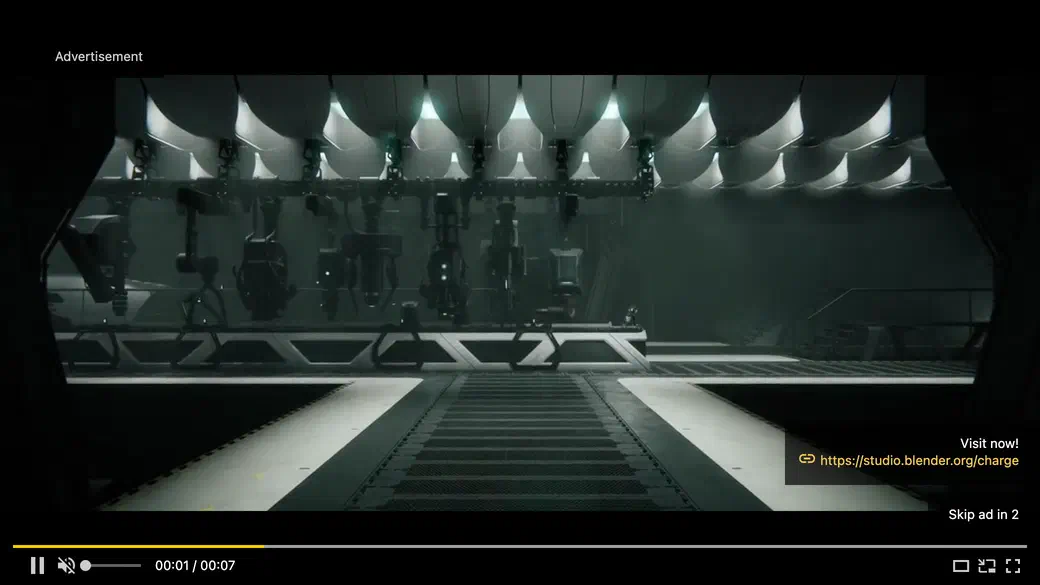
Replace the example URLs with the VAST tags from your ad network. The skip button follows the skip time set in the ad itself. You can show several ads per video, add fallback tags in case a tag returns no ad, and switch on VPAID ads with allowVPAID: true. The advertising section of the documentation (opens in a new tab) lists every ad setting.
Know what your ads are doing
To react to ads in your app, for example to count impressions in your own analytics, add callbacks in vastAdvanced:
const playerOptions = {
  vastOptions: {
    adList: [/* ... */],
    vastAdvanced: {
      vastLoadedCallback: () => console.log('Ad loaded'),
      noVastVideoCallback: () => console.log('No ad returned'),
      vastVideoSkippedCallback: () => console.log('Ad skipped'),
      vastVideoEndedCallback: () => console.log('Ad finished'),
    },
  },
};
noVastVideoCallback is useful to spot a tag that returns no ad: the player then simply goes on with your video.
Because the options object is defined outside the component, the ads don’t restart when your app re-renders.
Step 5: listen to player events and control playback
onReady gives you the player as soon as it starts. From there you can listen to events with player.on():
import { useCallback } from 'react';
import FluidPlayer from './FluidPlayer';

export default function App() {
  const handleReady = useCallback((player) => {
    player.on('play', (event, info) => {
      console.log('Playing:', info.mediaSourceType); // 'source', 'preRoll', 'midRoll' or 'postRoll'
    });
    player.on('ended', (event, info) => {
      if (info.mediaSourceType === 'source') {
        console.log('The viewer watched the whole video');
      }
    });
  }, []);

  return <FluidPlayer src="/videos/my-video.mp4" options={playerOptions} onReady={handleReady} />;
}
Events also fire for ads, and info.mediaSourceType tells you whether it’s your video ('source') or an ad. The events you can listen to are play, playing, pause, ended, seeked, waiting, timeupdate, theatreModeOn, theatreModeOff and miniPlayerToggle.
To control the player from your own buttons, keep it in a ref:
const playerRef = useRef(null);
const handleReady = useCallback((player) => {
  playerRef.current = player;
}, []);

// Later, for example in a click handler:
playerRef.current?.pause();
playerRef.current?.skipTo(90);   // jump to 1:30
playerRef.current?.setVolume(0.5);
The player also has play(), setPlaybackSpeed(), toggleFullScreen() and toggleMiniPlayer(). See the controls API (opens in a new tab) and events API (opens in a new tab) pages of the documentation for details.
Step 6: switch to another video
Fluid Player doesn’t change the source of a running player. With this component you don’t need to worry about it: src is in the effect’s dependencies, so when it changes, the component destroys the old player and starts a new one on the new video.
const [video, setVideo] = useState('/videos/episode-1.mp4');

<FluidPlayer src={video} options={playerOptions} />
<button onClick={() => setVideo('/videos/episode-2.mp4')}>Next episode</button>
The new player shows your ads again, starting with the pre-roll, as it would for any new video.
Step 7: play HLS (.m3u8) streams in React
For HLS, pass the stream URL and its type:
<FluidPlayer
  src="https://example.com/live/stream.m3u8"
  type="application/x-mpegURL"
/>
That’s all. Browsers that play HLS on their own, such as Safari, use their built-in support. In the others, Fluid Player loads the hls.js library from your app’s bundle, only when an HLS video is played, so it doesn’t add weight to pages without streams. The quality menu fills itself with the stream’s resolutions. DASH works the same way, with type="application/dash+xml".
Step 8: make autoplay work in React
Browsers only let a video start by itself when it is muted. So set both options:
const playerOptions = {
  layoutControls: { autoPlay: true, mute: true },
};
The viewer can then turn the sound on with the volume button. In development, StrictMode may log [FP_ERROR] Playback error AbortError once: that’s the first player being removed while it starts playing, during React’s test run. It doesn’t happen in production.
TypeScript version of the component
Fluid Player includes its own type definitions, so there is nothing extra to install. Here is the same component in TypeScript (FluidPlayer.tsx), with types taken from the package:
import { useEffect, useRef } from 'react';
import fluidPlayer from 'fluid-player';
import 'fluid-player/src/css/fluidplayer.css';

type FluidPlayerOptions = NonNullable<Parameters<typeof fluidPlayer>[1]>;
type FluidPlayerInstance = ReturnType<typeof fluidPlayer>;

type FluidPlayerProps = {
  src: string;
  type?: string;
  options?: FluidPlayerOptions;
  onReady?: (player: FluidPlayerInstance) => void;
};

export default function FluidPlayer({ src, type = 'video/mp4', options, onReady }: FluidPlayerProps) {
  const containerRef = useRef<HTMLDivElement>(null);

  useEffect(() => {
    const container = containerRef.current;
    if (!container) return;

    const video = document.createElement('video');
    const source = document.createElement('source');
    source.src = src;
    source.type = type;
    video.appendChild(source);
    container.appendChild(video);

    const player = fluidPlayer(video, {
      ...options,
      layoutControls: { fillToContainer: true, ...options?.layoutControls },
    });
    onReady?.(player);

    return () => player.destroy();
  }, [src, type, options, onReady]);

  return <div ref={containerRef} style={{ width: '100%', aspectRatio: '16 / 9' }} />;
}
Your editor then completes every option name, and catches typos such as autoplay instead of autoPlay. When you write an ad list outside the component, add as const after each roll value (roll: 'preRoll' as const) so TypeScript keeps the exact ad type.
Using Fluid Player in Next.js
The component works in Next.js too. It uses React hooks, so in the App Router it must be a client component: add 'use client'; as the first line of FluidPlayer.tsx, or import it from a client component. The player itself only starts inside useEffect, which runs in the browser, so server rendering is not a problem.
To load the player’s code only on the client, and keep it out of the page’s first download, you can also use next/dynamic with ssr: false:
'use client';

import dynamic from 'next/dynamic';

const FluidPlayer = dynamic(() => import('./FluidPlayer'), { ssr: false });

export default function VideoSection() {
  return <FluidPlayer src="/videos/my-video.mp4" />;
}
Seeing window is not defined or Cannot use import statement outside a module when you build? Those errors came from older versions of Fluid Player: update to the latest version (npm install fluid-player@latest). With version 3.61, both snippets above build and play in Next.js 16.
The next guide in this series covers Next.js in more detail.
Troubleshooting common errors
Invalid initializer - player target already is initialized: the player was started twice on the same<video>element. In React, it’s usually because the effect has no cleanup: use the component from Step 2. On plain HTML pages, check that every player has its ownid.- The player shows up and then disappears: the cleanup calls
destroy(), but the<video>element is written in JSX. Create it in the effect, as in Step 2. - The player restarts or the ad plays again when something else changes on the page:
optionsoronReadyis a new object on every render. Move it outside the component or useuseMemo/useCallback. - Changing an option has no effect: Fluid Player reads its options once, when it starts. Pass the new options object to the component (a new
useMemovalue, for example): it then restarts the player with them. - The controls look broken or unstyled: the CSS import is missing. Add
import 'fluid-player/src/css/fluidplayer.css';. - The player is tiny: its container has no width. The component above fills its parent, so check the parent’s width.
- Autoplay doesn’t start: add
mute: truenext toautoPlay: true. - The video doesn’t play after the pre-roll on iPhone: use an MP4 (H.264) file, and check that your video server sends the right
Content-Typeand supports range requests, which Safari needs to play video. - Build errors such as
global is not defined(Vite) orCould not find a declaration file for module 'fluid-player'(TypeScript): they came from older versions. Update to the latest Fluid Player: version 3.61 builds with Vite and includes its own type definitions. - No ad shows: open your browser’s network tab and check the VAST tag answers. Many ad networks only return ads for approved domains, so test on your real site.
noVastVideoCallbacktells you when a tag returned no ad.
FAQ
Does React have a built-in video player?
React itself doesn’t: it renders the browser’s <video> element, with the browser’s basic controls. For your own look, ads, streaming or a quality menu, you add a player such as Fluid Player.
Is Fluid Player free for commercial use?
Yes. Fluid Player is open source under the MIT license: you can use it on commercial sites, change it and ship it in your products, for free. There is no license key and no revenue share on your ads.
Can I show VAST ads in React without Google’s IMA SDK?
Yes. Fluid Player reads VAST tags itself, so you don’t need the IMA SDK or any other ad script. Pre-roll, mid-roll, post-roll, banners and VPAID ads all work with the component above.
How do I play an HLS (.m3u8) stream in React?
Pass the .m3u8 address to the component with type="application/x-mpegURL", as in Step 7. Fluid Player uses the browser’s own HLS support when there is one, and loads hls.js only when it’s needed.
Does Fluid Player work with Vue, Angular or plain JavaScript?
Yes. Fluid Player is plain JavaScript, so it works with any framework or none. The documentation has guides for Vue (opens in a new tab) and Angular (opens in a new tab), and more guides in this series are on the way.
Does Fluid Player work with React 19?
Yes. Every example in this guide was tested with React 19 and StrictMode switched on.
How is this different from the React page in the Fluid Player documentation?
The documentation’s React page (opens in a new tab) shows the shortest possible setup. This guide builds on it with a component you can reuse across your app: it cleans up after itself, works in StrictMode and handles ads, events, streaming and TypeScript.
Next steps
- Coming next in the integration guides series: Fluid Player with Next.js.
- Try every setting on a live player in the Player Builder, then paste the options into your component.
- Read the Fluid Player documentation (opens in a new tab) for the full list of options and events.
- Comparing players? See how Fluid Player stacks up against Video.js and JW Player.
- Questions or ideas? Open an issue on GitHub (opens in a new tab): the Fluid Player team reads and answers them.