SRT or VTT? Which subtitle format each platform accepts
On this page 10 sections
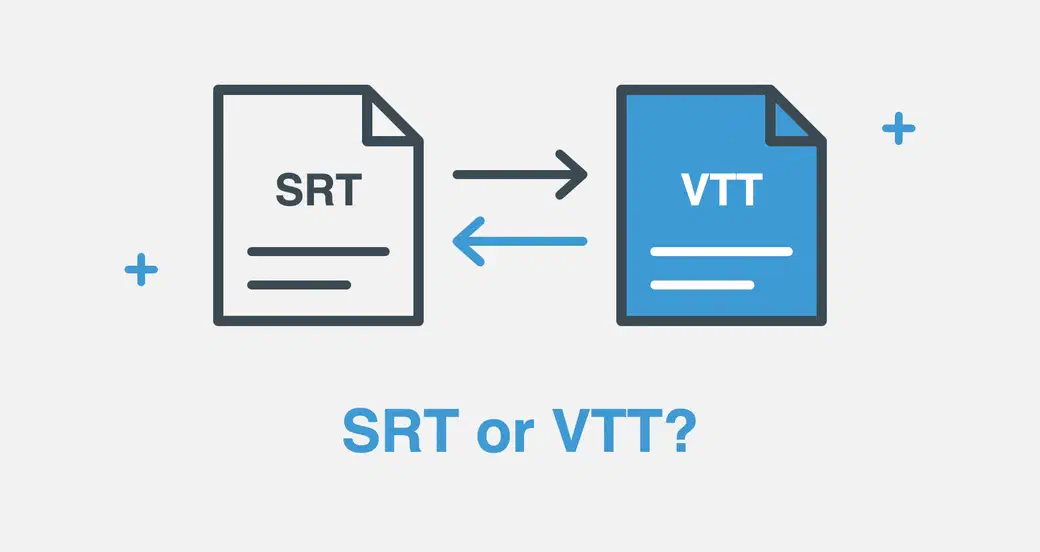
Short answer: use WebVTT (.vtt) for your own website, because it’s the only subtitle format web browsers play. Use SRT (.srt) almost everywhere else: LinkedIn, X, Facebook, video editors such as Final Cut Pro and most translators only take SRT. YouTube, Vimeo and most video platforms take both.
To switch a file from one format to the other, we’ve just released two free tools: the SRT to VTT Converter and the VTT to SRT Converter. They run entirely in your browser, so your files are never uploaded, and they convert several files at once.
Below: which format each platform accepts, what to do with a .vtt file you received, and how to fix the two problems that come up most, subtitles out of sync and broken accents.
Which subtitle format does each platform accept?
We checked each platform’s own help pages on November 17, 2026. Platforms change their rules from time to time, so the source of each row is linked.
| Platform | SRT | WebVTT (VTT) | Good to know | Source |
|---|---|---|---|---|
| Your website (HTML5 video) | No | Yes | Browsers only play WebVTT, through the <track> element. | MDN (opens in a new tab) |
| WordPress (Video block) | No | Yes | Add the .vtt file as a text track of the video. | WordPress (opens in a new tab) |
| YouTube | Yes | Yes | Also SBV, TTML, SCC and more. SRT and SBV files must be plain UTF-8. | YouTube Help (opens in a new tab) |
| Vimeo | Yes | Yes | Vimeo recommends WebVTT. Files must be UTF-8. | Vimeo Help (opens in a new tab) |
| Yes | No | The file name must include the language: video.en_US.srt. | Meta for Developers (opens in a new tab) | |
| Yes | No | Captions can be added from a computer, not the mobile app. | LinkedIn Help (opens in a new tab) | |
| X (Twitter) | Yes | No | Caption files are uploaded as .srt. | X Help (opens in a new tab) |
| Wistia | Yes | Yes | VTT files are converted to SRT on upload, so their styling and positions are lost. | Wistia (opens in a new tab) |
| Brightcove | Yes | Yes | Also DFXP and SCC. The file must be UTF-8, or processing fails. | Brightcove (opens in a new tab) |
| JW Player | Yes | Yes | Both can be uploaded; the player documentation recommends WebVTT. | JW Player (opens in a new tab) |
| Kaltura | Yes | Yes | Also DFXP. | Kaltura (opens in a new tab) |
| Canvas LMS | Yes | Yes | On iPhone and iPad, Canvas only shows WebVTT captions. | Instructure Community (opens in a new tab) |
| Moodle | No | Yes | Upload the file to Moodle rather than linking to it. | Moodle Docs (opens in a new tab) |
| Premiere Pro | Yes | Not listed | Imports SRT, SCC, MCC, STL, DFXP and XML caption files. | Adobe (opens in a new tab) |
| Final Cut Pro | Yes | No | Imports SRT, iTT and CEA-608 (.scc) caption files. | Apple (opens in a new tab) |
| CapCut | Yes | No | Desktop and web only: the mobile app can’t import subtitle files. | CapCut (opens in a new tab) |
| VLC | Yes | Yes | WebVTT is supported since VLC 3.0. | VideoLAN (opens in a new tab) |
| Fluid Player | No | Yes | Like every HTML5 video player, it reads WebVTT. | Fluid Player docs (opens in a new tab) |
Not in the table, because we couldn’t confirm them on an official page: TikTok and Instagram posts don’t seem to accept caption files at all (captions are generated or typed in the app), and DaVinci Resolve clearly imports SRT, but we found no current official page confirming WebVTT import. If you’re unsure, SRT is the safer choice for those.
The pattern behind the table
- Web pages and web players → WebVTT. It’s the subtitle format of HTML5 video, defined by the W3C (WebVTT specification (opens in a new tab), a Candidate Recommendation).
- Social networks and video editors → SRT. It’s older, simpler and has been the common format of subtitle software since the early 2000s.
- Video hosting platforms → both. YouTube, Vimeo, Wistia, Brightcove, JW Player and Kaltura accept either.
SRT vs VTT in 30 seconds
Both are plain text: a list of timings, each followed by the text to show. Here is the same subtitle in each format:
1
00:00:01,200 --> 00:00:03,800
Once upon a time…WEBVTT
00:00:01.200 --> 00:00:03.800
Once upon a time…| SRT | WebVTT | |
|---|---|---|
| First line | The first subtitle | WEBVTT |
| Milliseconds | After a comma: 00:00:01,200 | After a dot: 00:00:01.200 |
| Subtitle numbers | Required | Optional |
| Encoding | Not defined: older files are often Windows-1252 | Always UTF-8 |
| Position and style | Italics, bold, underline; positions only through unofficial tags such as {\an8} | Positions, alignment and CSS styling, speaker names, comments |
| Official specification | None | W3C (WebVTT (opens in a new tab)) |
| Plays in browsers | No | Yes |
That’s also why renaming a .srt file to .vtt doesn’t work: without the WEBVTT line and the dots, browsers silently ignore the file. And replacing every comma with a dot breaks the commas in your subtitle text. A converter changes only the timings.
Got a .vtt file? How to open it and what to do with it
You may get .vtt files without asking for them: meeting tools such as Microsoft Teams and Zoom save their transcripts as .vtt, online courses offer them as downloads, and YouTube lets you download the subtitles of your own videos.
- To read it: a .vtt file is plain text. Open it with any text editor: Notepad on Windows, TextEdit on Mac.
- To watch it with a video: open the video in VLC, then add the subtitle file (Subtitle menu, Add Subtitle File).
- To use it somewhere that only takes SRT (LinkedIn, Facebook, Premiere Pro, Final Cut Pro, CapCut): convert it with the VTT to SRT Converter. Drop the file, check the result, download the .srt.
Meeting transcripts often mark who is speaking with voice tags, such as <v Anna>Hello everyone</v>. SRT has no equivalent, so the converter removes the tag and keeps the words. If you need the names, add them to the text before converting.
Subtitles out of sync? Check whether the gap grows
Two different problems look alike at first:
- The gap stays the same from start to end (always 2 seconds late, for example): the subtitles were timed for a version of the video that starts earlier or later. Move every subtitle by the same amount. In both converters, enter the difference in Shift timing, in milliseconds; a minus sign shows the subtitles earlier.
- The gap grows as the video plays (fine at the start, way off at the end): the subtitles were timed for a different frame rate. A film at 23.976 frames per second that’s released at 25 fps runs about 4% faster, so after one hour the subtitles are almost two and a half minutes late. Moving them won’t help; they need to be stretched. Pick the right pair in Frame rate, such as “Subtitles for 23.976 fps, video at 25 fps”. The converters offer the usual pairs between 23.976, 24, 25 and 29.97 fps.
Broken accents: “é” instead of “é”
If your subtitles show é, ’ or � instead of accented letters and apostrophes, the text was read with the wrong encoding, the way characters are stored as bytes.
SRT has no rule on encoding, and many older files were saved in Windows-1252, the old Windows encoding for Western European languages. WebVTT files must be UTF-8: the specification says they must be “encoded as UTF-8”. YouTube, Vimeo and Brightcove also ask for UTF-8. When a UTF-8 file is read as Windows-1252, or the other way around, accents break.
Both converters detect the encoding of each file (UTF-8, UTF-16, Windows-1252 and others), always save the result as UTF-8 and offer Repair accents when they spot broken characters. If the result still looks wrong, pick the right encoding in the Encoding menu: it lists 17 encodings, including Central European, Cyrillic, Greek, Turkish, Hebrew, Arabic, Baltic, Japanese, Chinese and Korean ones.
Converting from the command line: ffmpeg and Python
If you convert subtitles in a script or on a server, two free tools do the basic job. We tested these commands with ffmpeg 9.0 and webvtt-py 0.6.
With ffmpeg (opens in a new tab), the output format follows the file extension:
ffmpeg -i subtitles.srt subtitles.vtt
ffmpeg -i subtitles.vtt subtitles.srt
For an old file in Windows-1252, tell ffmpeg the encoding, so accents come out right:
ffmpeg -sub_charenc CP1252 -i subtitles.srt subtitles.vttTo convert every SRT file of a folder (macOS, Linux):
for f in *.srt; do ffmpeg -i "$f" "${f%.srt}.vtt"; doneIn Python, with the webvtt-py (opens in a new tab) package (pip install webvtt-py):
import webvtt

# SRT to VTT: writes subtitles.vtt next to the SRT file
webvtt.from_srt('subtitles.srt').save()

# VTT to SRT
webvtt.read('subtitles.vtt').save_as_srt('subtitles.srt')
In our test, webvtt-py dropped italics when writing SRT, and neither tool reports problems in the file. For files you can’t check by hand, the converters’ Check list flags overlapping subtitles, timings that end before they start, lines too long for phones and broken accents, with a fix for the most common ones.
Adding WebVTT subtitles to your own website
Browsers show subtitles through a <track> element inside the <video> element:
<video controls>
  <source src="video.mp4" type="video/mp4">
  <track kind="subtitles" src="subtitles.vtt" srclang="en" label="English" default>
</video>
With Fluid Player, mark the track as metadata and switch subtitles on in the options. The player then shows them in its own style, with a subtitles menu:
<video id="my-video" controls>
  <source src="video.mp4" type="video/mp4">
  <track kind="metadata" src="subtitles.vtt" srclang="en" label="English" default>
</video>

<script src="https://cdn.fluidplayer.com/v3/current/fluidplayer.min.js"></script>
<script>
  fluidPlayer('my-video', {
    layoutControls: {
      subtitlesEnabled: true
    }
  });
</script>
The SRT to VTT Converter writes this code for you, with one track per file and the language taken from the file name. Before you publish, you can preview your subtitles in Fluid Player, on the demo video or on your own video, which plays from your computer.
If your subtitles don’t show, check these, in this order:
- The file is WebVTT, not a renamed SRT: it starts with
WEBVTTand uses dots before the milliseconds. - It’s saved as UTF-8.
- Your server sends it with the
text/vttcontent type. - It’s on the same domain as the page, or its server allows cross-origin requests (CORS).
- You’re testing through a web server: browsers don’t load subtitle files for a page opened straight from your disk.
Captions and accessibility
Captions aren’t only for viewers watching without sound. The Web Content Accessibility Guidelines ask for captions on prerecorded videos (opens in a new tab) (success criterion 1.2.2, level A). In the European Union, the European Accessibility Act (opens in a new tab) has applied since June 28, 2025 to many products and services, including e-commerce sites and some audiovisual services. Whether it applies to your site depends on your business, so check with your legal team. Either way, a WebVTT file and a player that shows it are the technical part of the job.
FAQ
Is VTT better than SRT?
Neither is better in general: they’re made for different places. WebVTT is the only format web browsers play and it can position and style subtitles. SRT is accepted by more editing software and social networks. Pick the one the platform asks for, using the table above, and convert when you need the other.
Can I upload a VTT file to Facebook, LinkedIn or X?
No. Facebook, LinkedIn and X only accept SRT caption files. Convert your file with the VTT to SRT Converter first. For Facebook, also add the language to the file name, such as video.en_US.srt.
Does Premiere Pro import VTT files?
Adobe’s list of supported caption formats doesn’t include WebVTT. It does include SRT, so convert your VTT file to SRT before importing it. Final Cut Pro doesn’t import WebVTT either.
How do I open a VTT file?
With any text editor, such as Notepad or TextEdit: it’s plain text. To watch it with its video, open both in VLC.
Can ffmpeg convert VTT to SRT?
Yes: ffmpeg -i subtitles.vtt subtitles.srt. It also works the other way around. Add -sub_charenc CP1252 before -i for older files with broken accents.
Are my files uploaded when I use the converters?
No. Both converters run in your browser: your files are read and converted on your device, and nothing is sent to us or anyone else. You can check it in your browser’s developer tools, in the network tab.
Why do my subtitles show in VLC but not on my website?
VLC also plays SRT files, but browsers only play WebVTT. Convert the file to VTT, then go through the checklist in the section above: header, UTF-8, text/vtt content type, same domain, web server.
Try the converters
- SRT to VTT Converter: for HTML5 video, WordPress, Moodle and your own website.
- VTT to SRT Converter: for LinkedIn, X, Facebook, Premiere Pro, Final Cut Pro and CapCut.
Both are free, need no sign-up, convert several files at once and download them as one ZIP. More tools are on our free tools page.