How to add a Vue video player with VAST ads (Vue 3 and Nuxt)
On this page 13 sections
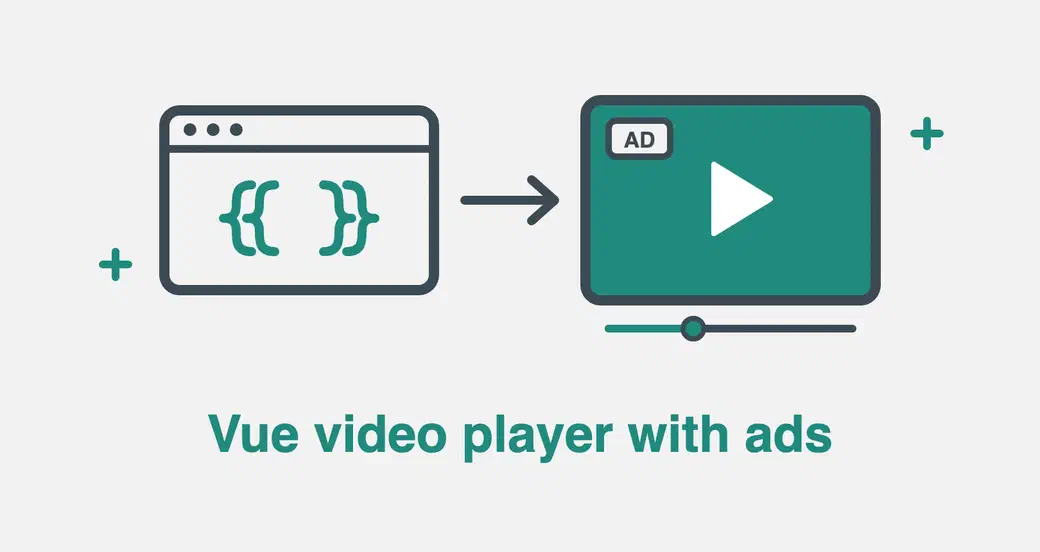
Search for “Vue video player” and you mostly find packages: wrappers around other players, many of them last updated in 2022. None of them helps you show video ads. In this guide we build a small Vue 3 component around Fluid Player, the free and open source HTML5 video player with VAST ads built in, then add pre-roll, mid-roll and post-roll ads, listen to player events, play HLS streams and use it all in Nuxt. No wrapper package needed: the component is about 40 lines.
Every example was tested with Fluid Player 3.61, Vue 3.5 and Nuxt 4.
This is the second guide in our integration guides series, after React. Next up: Next.js.
What you need
- A Vue 3 app (Vite, Nuxt, or any setup that bundles npm packages).
- Fluid Player from npm. It is free for any use, commercial sites included, under the MIT license.
- For ads: a VAST tag URL from your ad network or ad server. Fluid Player works with any VAST-compatible network.
Step 1: install Fluid Player
npm install fluid-playerThe npm package doesn’t add its styles by itself: the component below imports its CSS file. If the player’s controls ever look broken or unstyled, that import is missing.
Step 2: build a reusable FluidPlayer component
Here is the whole component, with TypeScript. Save it as FluidPlayer.vue:
<script setup lang="ts">
import { ref, onMounted, onBeforeUnmount } from 'vue';
import fluidPlayer from 'fluid-player';
import 'fluid-player/src/css/fluidplayer.css';

type FluidPlayerOptions = NonNullable<Parameters<typeof fluidPlayer>[1]>;
type FluidPlayerInstance = ReturnType<typeof fluidPlayer>;

const props = withDefaults(defineProps<{
  src: string;
  type?: string;
  options?: FluidPlayerOptions;
}>(), {
  type: 'video/mp4',
  options: () => ({}),
});

const emit = defineEmits<{ ready: [player: FluidPlayerInstance] }>();

const video = ref<HTMLVideoElement | null>(null);
let player: FluidPlayerInstance | null = null;

onMounted(() => {
  player = fluidPlayer(video.value!, {
    ...props.options,
    layoutControls: { fillToContainer: true, ...props.options.layoutControls },
  });
  emit('ready', player);
});

onBeforeUnmount(() => {
  player?.destroy();
  player = null;
});
</script>

<template>
  <div class="fluid-player">
    <video ref="video">
      <source :src="src" :type="type" />
    </video>
  </div>
</template>

<style scoped>
.fluid-player {
  width: 100%;
  aspect-ratio: 16 / 9;
}
</style>
Not using TypeScript? Remove lang="ts", the two type lines and the types in angle brackets, and declare the props with defineProps({ src: String, ... }).
Use it like any other component:
<script setup lang="ts">
import FluidPlayer from './FluidPlayer.vue';
</script>

<template>
  <FluidPlayer src="/videos/my-video.mp4" />
</template>
The player fills the width of its parent and keeps a 16:9 shape. Change aspect-ratio if your videos have another format.
Clean up in onBeforeUnmount, not in destroyed
When the component is removed, from a v-if or a route change, the player must be destroyed too: otherwise its timers and window listeners keep running in the background. Two details matter:
- Use
onBeforeUnmount. It runs while the video element is still on the page, sodestroy()can remove the player cleanly.onUnmountedruns after the element is gone. - The Vue 2 hooks don’t exist in Vue 3. Older examples, including the one in our own documentation until now, clean up in
destroyed()orbeforeDestroy(). Vue 3 never calls them, so the cleanup never runs. We tested it: with the Vue 2-style example, each time the player is shown again, one more listener from the old player stays behind. With the component above, the count goes back to zero.
The player itself is kept in a plain variable, not in ref() or reactive(): Vue doesn’t need to watch it, and it saves Vue from wrapping a large object for nothing.
Step 3: style the player
Fluid Player’s settings go in the options prop:
<script setup lang="ts">
import FluidPlayer from './FluidPlayer.vue';

const playerOptions = {
  layoutControls: {
    primaryColor: '#e63946',           // color of the progress bar and buttons
    posterImage: '/images/poster.jpg', // image shown before the video starts
    title: 'Product tour',             // title shown at the top of the player
    playbackRateEnabled: true,         // speed menu
    logo: {
      imageUrl: '/images/logo.png',
      position: 'top right' as const,
      opacity: 0.8,
    },
  },
};
</script>

<template>
  <FluidPlayer src="/videos/my-video.mp4" :options="playerOptions" />
</template>
Fluid Player reads its options once, when it starts: define them as a plain object, as above, rather than reactive state. The Player Builder on our homepage lets you try every setting on a live player and copy the options it generates. Every option is also described in the Fluid Player documentation (opens in a new tab).
Step 4: add VAST video ads
Ads are built into Fluid Player: there is no ad SDK to load and no extra package to install. List your VAST tags in vastOptions.adList:
const playerOptions = {
  vastOptions: {
    adList: [
      { roll: 'preRoll' as const, vastTag: 'https://ads.example.com/vast/pre-roll.xml', adText: 'Advertisement' },
      { roll: 'midRoll' as const, vastTag: 'https://ads.example.com/vast/mid-roll.xml', timer: 30, adText: 'Advertisement' },
      { roll: 'postRoll' as const, vastTag: 'https://ads.example.com/vast/post-roll.xml', adText: 'Advertisement' },
    ],
    skipButtonCaption: 'Skip ad in [seconds]',
  },
};preRollplays before your video starts.midRollplays during the video, after the number of seconds intimer.postRollplays when your video ends.onPauseRollshows an image banner when the viewer pauses.
adText is the label shown at the top of the player during that ad; set it on each ad. The as const keeps TypeScript happy about the roll values. Replace the example URLs with the VAST tags from your ad network. You can also add fallback tags in case a tag returns no ad, and switch on VPAID ads with allowVPAID: true. The advertising section of the documentation (opens in a new tab) lists every ad setting. To see what this looks like in a player, our React guide has a screenshot of a pre-roll.
Know what your ads are doing
To react to ads in your app, for example to count impressions in your analytics, add callbacks in vastAdvanced:
const playerOptions = {
  vastOptions: {
    adList: [/* ... */],
    vastAdvanced: {
      vastLoadedCallback: () => console.log('Ad loaded'),
      noVastVideoCallback: () => console.log('No ad returned'),
      vastVideoSkippedCallback: () => console.log('Ad skipped'),
      vastVideoEndedCallback: () => console.log('Ad finished'),
    },
  },
};
noVastVideoCallback tells you when a tag returned no ad: the player then simply goes on with your video.
Step 5: listen to events and control the player
The component emits ready with the player as soon as it starts. Listen to it to subscribe to events or keep the player for your own buttons:
<script setup lang="ts">
import FluidPlayer from './FluidPlayer.vue';

let player: any = null;

function onReady(p: any) {
  player = p;
  p.on('play', (event: Event, info: { mediaSourceType: string }) => {
    console.log('Playing:', info.mediaSourceType); // 'source', 'preRoll', 'midRoll' or 'postRoll'
  });
  p.on('ended', (event: Event, info: { mediaSourceType: string }) => {
    if (info.mediaSourceType === 'source') console.log('The viewer watched the whole video');
  });
}
</script>

<template>
  <FluidPlayer src="/videos/my-video.mp4" @ready="onReady" />
  <button @click="player?.pause()">Pause</button>
  <button @click="player?.skipTo(90)">Jump to 1:30</button>
</template>
Events also fire for ads, and info.mediaSourceType tells you whether it’s your video or an ad. The events you can listen to are play, playing, pause, ended, seeked, waiting, timeupdate, theatreModeOn, theatreModeOff and miniPlayerToggle. The player also has play(), setVolume(), setPlaybackSpeed(), toggleFullScreen() and more: see the controls API (opens in a new tab) and events API (opens in a new tab) pages of the documentation.
Step 6: switch to another video
Fluid Player doesn’t change the source of a running player. In Vue, the simplest way around it is a key that changes with the address: when the key changes, Vue replaces the component, which destroys the old player and starts a new one.
<script setup lang="ts">
import { ref } from 'vue';
import FluidPlayer from './FluidPlayer.vue';

const videoUrl = ref('/videos/episode-1.mp4');
</script>

<template>
  <FluidPlayer :key="videoUrl" :src="videoUrl" />
  <button @click="videoUrl = '/videos/episode-2.mp4'">Next episode</button>
</template>
The new player shows your ads again, starting with the pre-roll, as it would for any new video.
Step 7: play HLS and DASH streams
Pass the stream address and its type:
<FluidPlayer src="https://example.com/live/stream.m3u8" type="application/x-mpegURL" />
<FluidPlayer src="https://example.com/vod/manifest.mpd" type="application/dash+xml" />
Fluid Player uses the browser’s own HLS support where there is one (Safari, and Chrome since version 142), and otherwise loads hls.js or dash.js from your app’s bundle, only when a stream is played. The quality menu fills itself with the stream’s resolutions. If a stream doesn’t play, paste its address into our free HLS & DASH Stream Tester: it names the file that fails, CORS errors included.
Step 8: make autoplay work
Browsers only let a video start by itself when it’s muted, so set both:
const playerOptions = {
  layoutControls: { autoPlay: true, mute: true },
};
Using Fluid Player in Nuxt
The component works in Nuxt as it is. We tested it in a Nuxt 4 app with server rendering: the page renders on the server with the plain <video> element, then the player starts in the browser, because onMounted only runs there. Put FluidPlayer.vue in components/, and Nuxt imports it automatically:
<template>
  <FluidPlayer src="/videos/my-video.mp4" />
</template>
If you’d rather not render the video element on the server at all, wrap the player in <ClientOnly>:
<template>
  <ClientOnly>
    <FluidPlayer src="/videos/my-video.mp4" />
  </ClientOnly>
</template>
Seeing window is not defined when you build? That error came from older versions of Fluid Player: update to the latest one (npm install fluid-player@latest).
Troubleshooting
- Listeners and timers pile up each time the player is shown again: the cleanup never runs. Destroy the player in
onBeforeUnmount, not in Vue 2’sdestroyed()orbeforeDestroy(). Invalid initializer - player target already is initialized: the player was started twice on the same<video>element. Start it once, inonMounted, and let:keyreplace the component when the video changes.- Changing an option or the video has no effect: Fluid Player reads them once, when it starts. Change the component’s
keyto restart it. - The controls look broken or unstyled: the CSS import is missing:
import 'fluid-player/src/css/fluidplayer.css';. - The player is tiny: its container has no width. The component fills its parent, so check the parent’s width.
- Autoplay doesn’t start: add
mute: truenext toautoPlay: true. - No ad shows: check in your browser’s network tab that the VAST tag answers. Many ad networks only return ads for approved domains, so test on your real site.
FAQ
What is the best video player for Vue 3?
It depends on what you need. For a plain video, the browser’s <video> element is enough. For your own look, streaming and especially video ads, you need a real player. Fluid Player plays VAST ads, HLS and DASH out of the box, it’s free and open source, and as shown above it needs no Vue wrapper.
Is vue-video-player still maintained?
Its last releases date from 2022: vue-video-player 6.0 and its successor @videojs-player/vue 1.0, both from August 2022 on npm. vue-plyr was last released in June 2022. A small component like the one in this guide avoids depending on a wrapper at all.
Do I need Google’s IMA SDK to show VAST ads in Vue?
No. Fluid Player reads VAST tags itself, so you don’t need the IMA SDK or any other ad script. Pre-roll, mid-roll, post-roll, banners and VPAID ads all work with the component above.
Should I clean up in onBeforeUnmount or onUnmounted?
onBeforeUnmount: it runs while the video element is still on the page, so the player can remove itself cleanly. Never in destroyed() or beforeDestroy(): those are Vue 2 hooks, and Vue 3 doesn’t call them.
Can I use Fluid Player with Vue 2?
Yes. Vue 2 reached end of life on December 31, 2023, but in a Vue 2 project you can create the player in mounted() and call destroy() in beforeDestroy().
Is Fluid Player free for commercial use?
Yes. Fluid Player is open source under the MIT license: you can use it on commercial sites, change it and ship it in your products, for free. There is no license key and no revenue share on your ads.
Next steps
- Using React? Read our React guide. Next in the integration guides series: Next.js.
- Try every setting on a live player in the Player Builder, then paste the options into your component.
- Read the Fluid Player documentation (opens in a new tab) for the full list of options and events.
- Questions or ideas? Open an issue on GitHub (opens in a new tab): the Fluid Player team reads and answers them.